
Outlook Attachment or OneDrive Link? A File-Sharing Checklist
INSPUR TECH · Office software guide · 9 October 2026
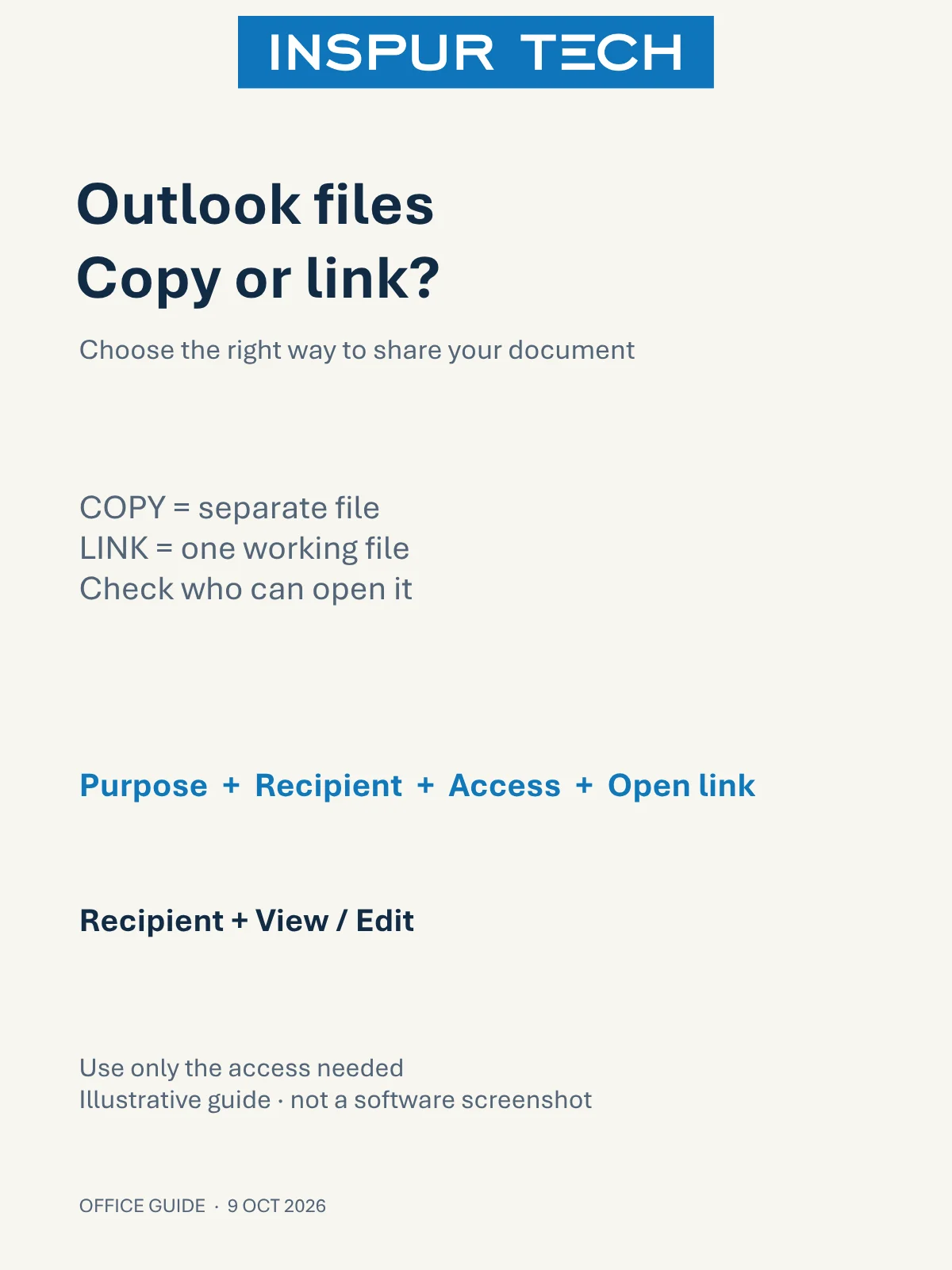
Send an attachment when the recipient needs a separate copy. Share a OneDrive link when people should work from the same online file. Before sending either, decide what the recipient needs to do: read, approve or edit.
Start with the document’s purpose
Consider two everyday situations. A supplier needs the approved quotation as a record: a clearly named copy can keep that handover simple. Your colleagues are still revising a meeting agenda: agree on one working file so comments are not scattered across email replies. These are planning examples, not customer case studies.
A copied attachment does not synchronise the recipient’s changes back to your OneDrive file. A shared link points to the online document. Microsoft explains both options in its Outlook attachment guide.
Choose the option in Outlook
In new Outlook for Windows, open a message and select Attach File. Browse your computer for a local copy, or choose OneDrive for a cloud file. For a OneDrive or SharePoint file, choose whether to send a link or a copy; inspect the attachment’s menu for permissions.
Classic Outlook and Outlook on the web use different menus. Follow the tab for your version in Microsoft’s guide rather than assuming every button will match. Your organisation may restrict available sharing options.
Check four things before Send
- Purpose: Is this an approved record or a document still being edited? State which version you want the recipient to use.
- Recipient: Check the actual email address. For a link intended for named recipients, review the audience in OneDrive’s sharing settings. An organisation-only link will not meet an external supplier’s needs.
- Access: Choose view access for reading and edit access only when changes are needed. “Specific people” limits who can use that link; it does not erase permissions already granted to others.
- Open: Confirm that the intended recipient can open the file. Opening it successfully in your own signed-in account is not proof of their access.
Review sharing choices and restrictions in Microsoft’s OneDrive sharing documentation. Do not widen access to everyone merely to make an error disappear.
If a recipient cannot open the link
Ask which account they are using and note the exact error. Check the named recipient, permissions and whether the file was moved or sharing stopped. Where Outlook displays an access warning, review Manage access. If a fixed copy meets the task and your company permits it, sending a copy is another option.
Keep one simple team rule: agree who owns the working file, where it is stored and how approval is recorded. A sharing link by itself does not establish approval.
For related business support, see our application management and computer support services, or explore more computer and office software tips.
Documentation checked 9 October 2026. Steps describe the versions noted above; available controls depend on your account and organisation settings. This guide is documentation-based and does not claim a customer deployment or hands-on test.