
Can a WhatsApp File Give Someone Remote Access to Your PC?
Yes, if an attachment leads to malicious code running or unwanted access being authorised. Receiving a file is not proof that your computer is infected. The important questions are what the file really is, what happened after it arrived, and whether an account or device connection was approved.
This guide is for office users receiving quotations, invoices and work documents through WhatsApp on Windows. It separates computer malware from WhatsApp account hijacking so you can choose the right next step.
A documented attack, not a claim that every download is dangerous
In a report published on 31 March 2026, Microsoft described a WhatsApp malware campaign observed from late February. Malicious VBScript files initiated an infection chain when executed. Later payloads enabled remote access, with potential for data theft and further malware deployment.
That report concerns a particular Windows attack chain. It does not establish that every WhatsApp attachment is malicious, or that simply downloading any file always infects a PC. Equally, downloading is not a universal guarantee of safety: software vulnerabilities and the way a file is processed can affect risk.
PC compromise and account compromise are different
- PC malware: malicious software running on your computer may access files or enable remote control, depending on its capabilities and permissions.
- WhatsApp account access: an unauthorised account session or linked device can let another person misuse your messaging account. This alone does not establish that they can browse every file on your PC.
A familiar name in a chat is therefore not enough to validate an unexpected attachment. Verify the request separately rather than relying only on a reply in the same conversation.
Before opening an unexpected work file
- Confirm the purpose. Was this quotation or invoice expected? Call the sender using a number you already know if the message is unusual.
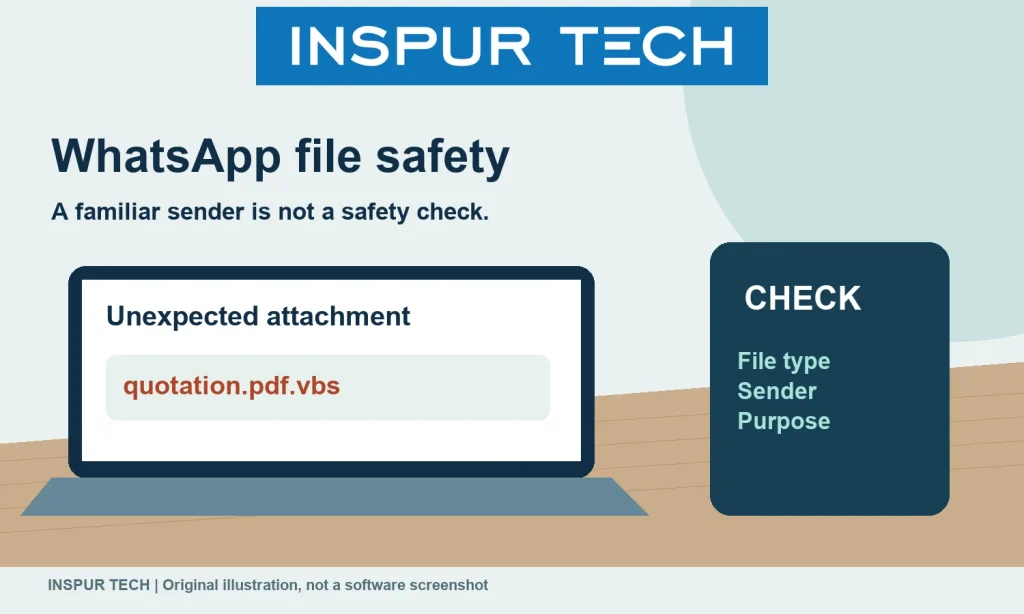
- Check the complete file name and type. Our illustration uses
quotation.pdf.vbsas a hypothetical example: a document-like name can conceal a script extension. It is not a real customer file or a malware sample. - Pause at unusual instructions. A routine document should not require you to install an unexpected programme, run a script, bypass a security warning or approve remote control. Ask your IT contact to verify the request.
- Use maintained software. Keep Windows, WhatsApp, document readers and security software updated. A file’s icon, name or a clean scan alone is not a complete assessment.
What to do depends on what happened
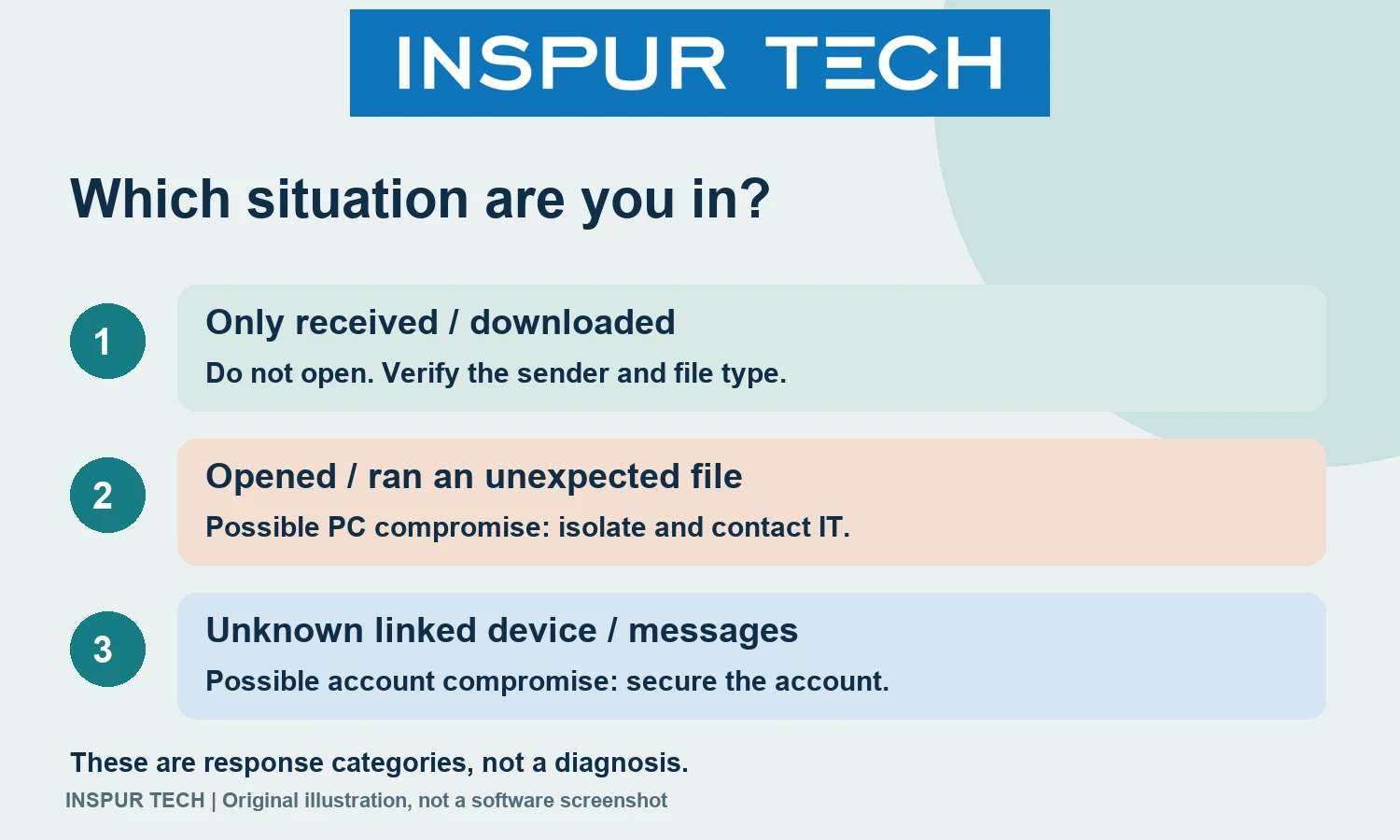
You only received or downloaded the file
Do not open it to see whether it is suspicious. Record its name and the message context, then ask your IT team how to handle it. Tell them whether any preview, opening, installation or security prompt occurred; do not assume those actions are equivalent.
You ran a suspicious file or approved unexpected access
Disconnect the affected computer from networks and contact trusted IT support promptly. Use an unaffected device to record the message, time and actions taken. Avoid using the suspect PC to sign into other work accounts or connecting backup drives to it.
The Singapore CSA malware-response playbook supports isolation, evidence collection and remediation. We use its technical guidance here, not its Singapore reporting obligations as Malaysian legal advice. Recovery may require more than deleting one downloaded file; professional investigation can determine the appropriate scope.
Your WhatsApp is sending messages you did not write
Check your linked devices and remove connections you do not recognise using WhatsApp’s official guidance. If access has been lost, use the official compromised-account recovery instructions. Let affected contacts know through a trusted channel. Securing the account does not by itself prove that a potentially infected computer is clean.
A simple rule for the office
Agree who verifies unexpected files, who handles incident reports and where staff should send concerns. Separate the chat sender’s identity from the file’s safety and the account’s security. For computer-support enquiries, see INSPUR TECH Computer Services. For more practical office guidance, visit INSPUR TECH Computer Tips.
Reviewed 10 October 2026. This is an educational checklist based on the linked official sources, not a diagnosis or a report of an INSPUR customer incident. Illustrations are original diagrams, not software screenshots or evidence of a live test.