
6 Signs Your Laptop is Overheating & How to Fix It
Laptop overheating happens when heat cannot escape properly from the device. This is often caused by dust buildup in the fan, blocked air vents, or old thermal paste.
Overheating can make your laptop slow, noisy, or even shut down suddenly. If left untreated, it may damage internal components and shorten the laptop’s lifespan.
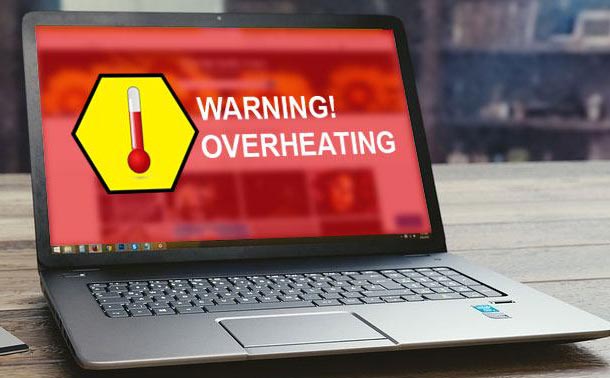
How to know if a laptop is overheating?
You may notice these common signs:
Laptop feels very hot
The keyboard, bottom, or air vents feel hot to the touch.Fan is very loud
The fan runs constantly or makes unusually loud noise.Laptop becomes slow
Performance drops, apps lag, or the system freezes.Sudden shutdowns or restarts
The laptop turns off by itself to prevent damage.Hot air coming from vents
Strong, hot airflow can be felt near the fan vents.Battery drains faster
Overheating can cause the battery to lose power quickly


Here is when you need a professional fan cleaning.
You should consider professional fan cleaning if:
Your laptop becomes very hot even during light use
The fan is loud or running all the time
The laptop slows down or freezes due to heat
It shuts down suddenly or restarts on its own
Hot air constantly blows from the vents
The laptop has not been cleaned for over a year
FAQs
Most frequent questions and answers
Ignoring laptop overheating can cause serious problems over time:
Slower performance
The system reduces speed to protect itself from heat.Frequent crashes or shutdowns
The laptop may turn off suddenly to prevent damage.Shorter component lifespan
Heat damages internal parts like the CPU, GPU, and motherboard.Battery damage
High temperatures can reduce battery life and cause swelling.Data loss
Sudden shutdowns can cause unsaved work to be lost.Permanent hardware damage
In severe cases, parts may fail completely, leading to costly repairs or replacement.
Laptop fans can become jammed for several reasons:
Dust and dirt buildup
Dust accumulates inside the fan, blocking movement and airflow.Pet hair or debris
Small hairs or particles can get stuck in the fan blades.Lack of cleaning
Long periods without internal cleaning cause dust to harden.Worn-out fan bearings
Over time, fan parts wear out and stop spinning smoothly.Overheating damage
Excessive heat can damage the fan motor, causing it to jam.
Basic fan cleaning: about 30–60 minutes
Deep cleaning (fan + heatsink + thermal paste): about 1–2 hours
The exact time depends on the laptop model and how much dust is inside. Thin or sealed laptops may take longer because they are harder to open.
No, or not recommended — if:
You have no experience opening laptops
Your laptop is thin or sealed (easy to damage)
The fan is deep inside the system
You need thermal paste replacement
Your laptop is still under warranty
Risks of DIY cleaning:
Breaking clips or screws
Damaging cables or the fan
Not cleaning properly, causing overheating to continue
