
PowerPoint to PDF: Choose Slides or Handouts Before Sharing
In PowerPoint for Windows, export to PDF and check the export options before publishing the file. Choose the output your reader needs: a slide-based document for reading the deck, or a handout layout for reviewing several slides together. This guide covers the Windows desktop Microsoft 365, 2024 and 2021 editions; do not transfer these controls directly to Mac or web versions.
An illustrative example is a meeting organiser preparing a six-slide progress update. The presenter wants the audience to see each diagram clearly, while a reviewer wants a compact set of pages for written comments. Those are different reading tasks. Decide which task you are supporting before naming and sending the output. This is an editorial example, not a client case or a tested template.

Choose the output in Windows
Use File → Export → Create PDF/XPS Document → Create PDF/XPS. In the publish dialog, open Options to review the slide range and Publish what. Select the relevant output, such as slides or handouts; when using a handout layout, inspect the slides-per-page and order choices. Review whether hidden slides or comments are included before publishing. Microsoft documents these controls in its PDF export guide.
Microsoft lists different PDF options for macOS, including limitations on notes, handouts, hidden-slide and file-size controls. If you are using a Mac, check that version’s instructions rather than searching for the Windows export dialog.
Decide what your recipient must be able to read
For the illustrative six-slide update, start with the densest slide. It may contain a chart legend, a process diagram or a table. Ask a colleague whether the information is understandable at the intended reading size. A convenient page count is not enough if the reader must repeatedly zoom to interpret a label.
For a compact review copy, ask where comments will be recorded. If reviewers plan to annotate the file, consider whether the layout leaves enough practical room for that task. If the audience needs to follow an explanation on a shared screen, favour a layout that keeps the main idea visible without extra navigation. These are workflow choices, not fixed requirements for every meeting.
Keep the editable master and the outgoing copy distinct
Our recommended handover habit is to preserve the working presentation and give the PDF a name that identifies its purpose. An example is “Project-update-review-copy.pdf”; use your own approved naming policy and avoid adding customer information to a public filename.
Keep a short note of the selected output, intended audience and review date. This helps the next colleague understand why the file was prepared that way. It also makes it easier to request a different format without treating the PDF as the team’s only working version.
Review the actual PDF before sending it
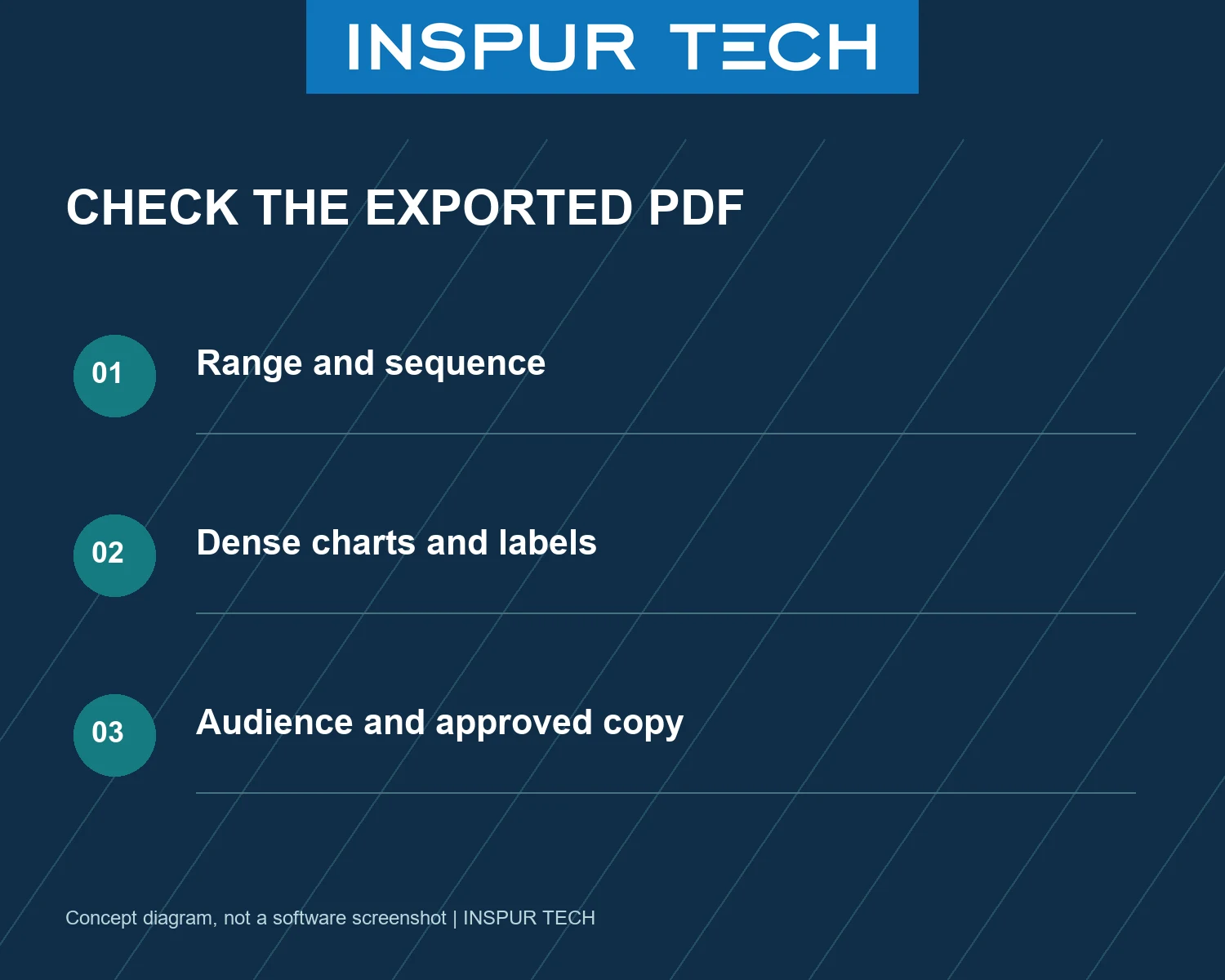
Open the exported file, then work through this short check:
- Confirm that its first and last intended slides are present and that the sequence matches the handover plan.
- Inspect the densest diagram or table at the recipient’s expected reading size.
- Look for material outside the intended audience’s scope, including private project details in visible text or pictures. This is a practical review, not a claim of complete document sanitisation.
- Check any links that the recipient is expected to use in the final PDF.
- Confirm that the filename and outgoing attachment refer to the approved copy, rather than an older export.
If the result does not support the reader’s task, return to the working deck and make a controlled revision. Avoid creating several similarly named outgoing files without recording which one is approved. The checklist cannot certify the underlying figures, permissions or business decisions; those still need the responsible owner’s review.
Prepare a useful support question
If the output remains difficult to use, note the PowerPoint version, chosen export layout and the exact page where the problem occurs. Provide a sanitised example when discussing the issue. For further office guidance, browse INSPUR TECH Computer Tips or use the contact route on the official website.
Technical source checked on 15 October 2026. Images are original explanatory diagrams, not software screenshots. No application test, customer result, PDF editing restriction or ranking outcome is claimed.