
The Default Printer Changed: A Windows 11 Office Checklist
If your Windows 11 default printer changes, first check whether Windows is managing the default automatically. Then check the printer selected inside the application you are actually using. A system default and a particular print job are different decisions; repeatedly reinstalling the printer is not the first useful test.
This checklist is for an office user choosing between printers that are already installed. It does not diagnose a missing printer, repair a stuck queue or authorise changes to centrally managed settings.
Choose how the default should be selected
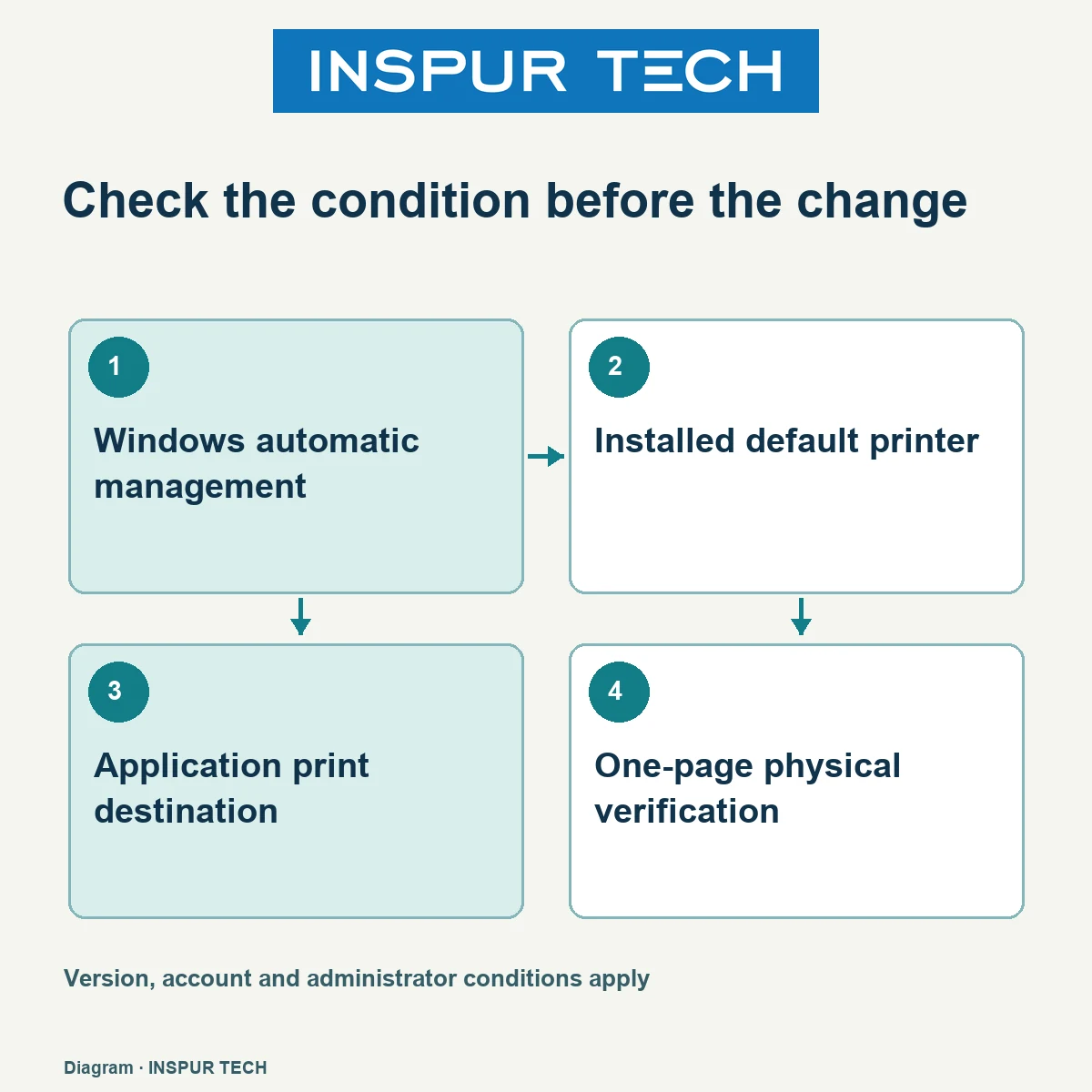
Microsoft documents two options: choose a particular default yourself, or let Windows use the printer used most recently. In Windows 11, open Settings, then Bluetooth & devices, then Printers & scanners. To select a fixed default, turn off Let Windows manage my default printer, select the intended installed printer and use Set as default. Follow your administrator's policy on a managed PC.
If the preferred device is not in the list, that is a separate installation or availability question. Record what is missing rather than assuming that another default setting will add it.
Verify the destination at the point of printing
Open a non-confidential sample document in the application where the problem occurred. Look at the actual printer name in its print dialog. Confirm the destination with the person responsible for that device, particularly when similar names refer to different rooms or queues.
Check paper size, page range and the preview before releasing the job. Where appropriate, print a single harmless page. Confirm that it arrived at the intended physical device; a completed dialog alone does not establish where the paper came out.
Record the trigger instead of changing several settings
Use a small observation log: time, application, selected printer, location and whether Windows automatic management was enabled. Note whether the change followed a move between offices, reopening a file or restarting the PC. These are observations, not proof of the cause.
Change one agreed setting at a time. Avoid deleting queues or restarting shared equipment while colleagues are printing. An administrator can decide whether a device policy or application preference needs attention after seeing the pattern.
A useful support request
Give IT the Windows version, the printer name expected, the name actually selected and one example of when it changed. Include the result of the one-page check. Keep customer documents and credentials out of public screenshots.
For the company service overview, visit INSPUR TECH. Related office guidance is available in Computer Tips. This article describes a selection workflow, not a completed repair or a guaranteed diagnosis.
Official references and applicability
Technical references checked on 27 October 2026. Interface, licence, administrator settings and the installed version must be confirmed for the actual environment.