
Windows Print Queue Stuck? Check Before Restarting the Spooler
A document stuck in a Windows print queue does not, by itself, prove that the printer hardware has failed. First identify which printer queue is affected, whether the problem follows one document, and whether other users can still print. This gives your IT support person a clearer starting point than repeatedly pressing Print.
This guide is for Windows 11 office PCs. A shared printer may also depend on a host PC or print server. Work on that shared system belongs to an authorised administrator, because a change there can affect other users. The illustrations are explanatory scenes and diagrams, not screenshots or a customer repair case.
1. Record the job before changing the queue
Write down the printer name exactly as Windows displays it, the application you printed from, the approximate time and the message beside the job. Record whether the issue concerns one document or several. Use a sanitised note or screenshot that does not expose customer documents or account information.
If a deadline is approaching, also note how many copies you actually need. Repeated submissions can make it harder to understand which jobs are still wanted. Agree with the people involved which work should remain in the queue before cancelling anything.
2. Check the scope: one PC or a shared route?
Ask a colleague whether the same printer is working from their PC. This is a comparison, not a diagnosis: another successful job does not prove that every part of your own connection is healthy. It helps distinguish an individual workstation problem from a wider interruption.
Also record whether the printer is reached directly or through another computer or server. If you do not know, tell IT that the route is unknown rather than changing shared settings to find out. An office contact who knows the printer location, queue name and person responsible for it is often more useful than a long list of attempted fixes.
3. Inspect the Windows 11 queue
Microsoft documents the route through **Start → Settings → Bluetooth & devices → Printers & scanners**. Select the relevant printer, then open its print queue. Check that you have selected the intended device before taking action: similar printer names can refer to different destinations.
Microsoft's spooler troubleshooting guide includes cancelling print jobs. Before using that step on an office queue, confirm which jobs can be discarded and who owns them. Do not treat a shared queue as a personal scratchpad. If you lack the necessary permission, stop at recording the symptom and ask the administrator to handle it.
4. Restart the spooler only in an agreed scope
The Print Spooler manages print jobs. Microsoft's documented restart route is **Windows key + R → services.msc → Print Spooler → Restart**. On a managed PC, this should be done only with the required permission and within company policy. If an administrator prompt appears, ask the authorised person; do not work around it.
A restart is a troubleshooting step, not a promise that the cause has been removed. This article does not ask you to delete spool folders, uninstall drivers, change firewall rules or restart a shared server. Those are separate decisions that need the system owner and a suitable plan.
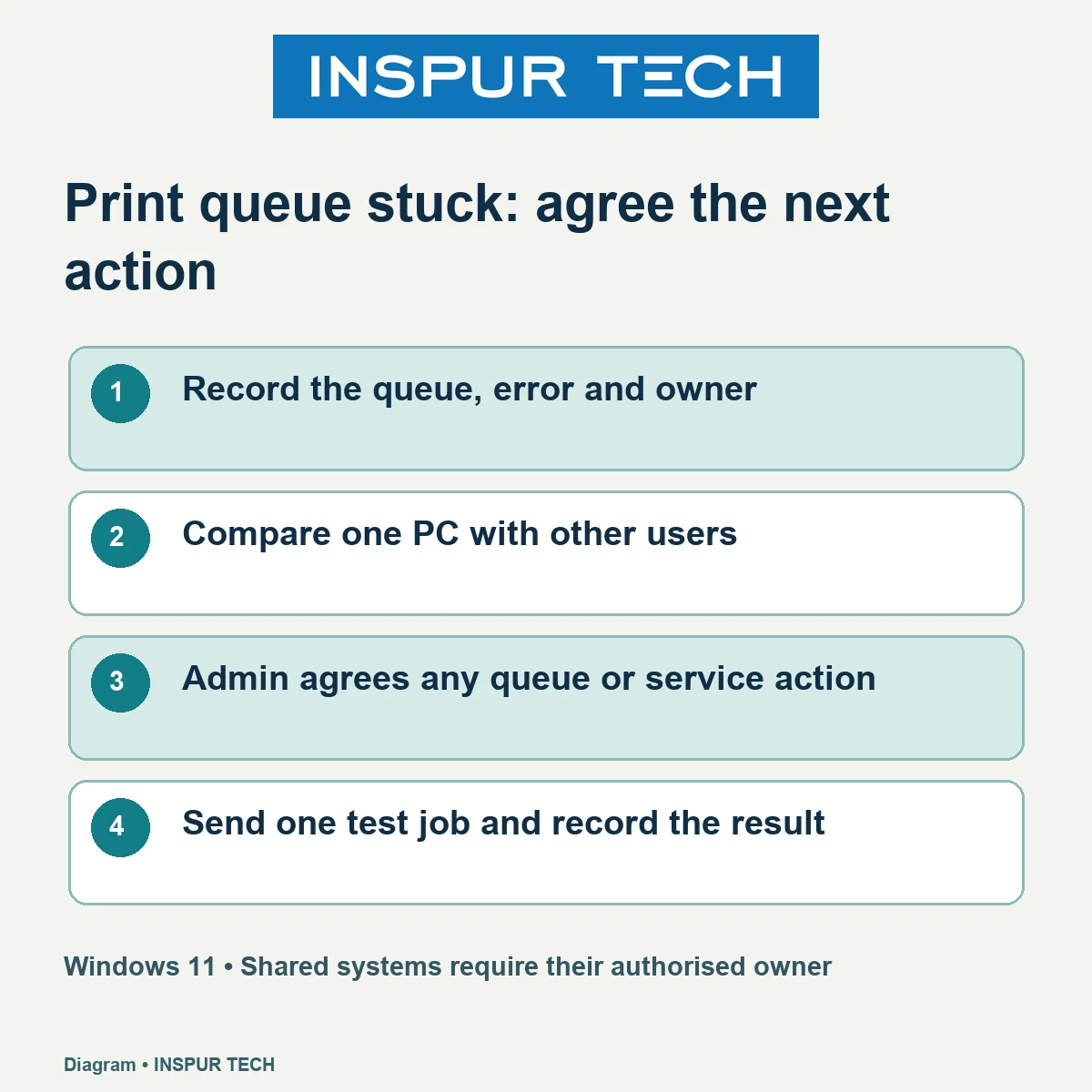
5. Check the result with one agreed test
After the administrator's action, send one suitable test job and record whether it prints, remains queued or fails with a message. Avoid sending the entire backlog immediately. A small, controlled check makes the result easier to describe and reduces uncertainty about which action produced it.
For a useful support handover, provide the queue name, affected PC, connection route if known, application, error wording, other users' results, and the changes already made. Add the real business deadline without including the confidential document itself.
Arrange the next step around the office task
INSPUR TECH provides computer repair services and describes its network and wiring work on the company website. Describe the affected workflow and equipment first so the relevant service scope can be discussed. This checklist does not establish a repair price, response time, warranty or guaranteed outcome.
Official references
Microsoft: Fix print spooler service not running errors – Microsoft: Fix printer connection and printing problems – Microsoft Learn: Troubleshooting scenarios for printing
References checked 25 October 2026. Menu wording and available actions can vary with Windows updates, device management and printer software. Server guidance is an administrator reference, not a reason for an ordinary user to change a shared server.