
Office Printer Offline in Windows 11: One PC or the Whole Team?
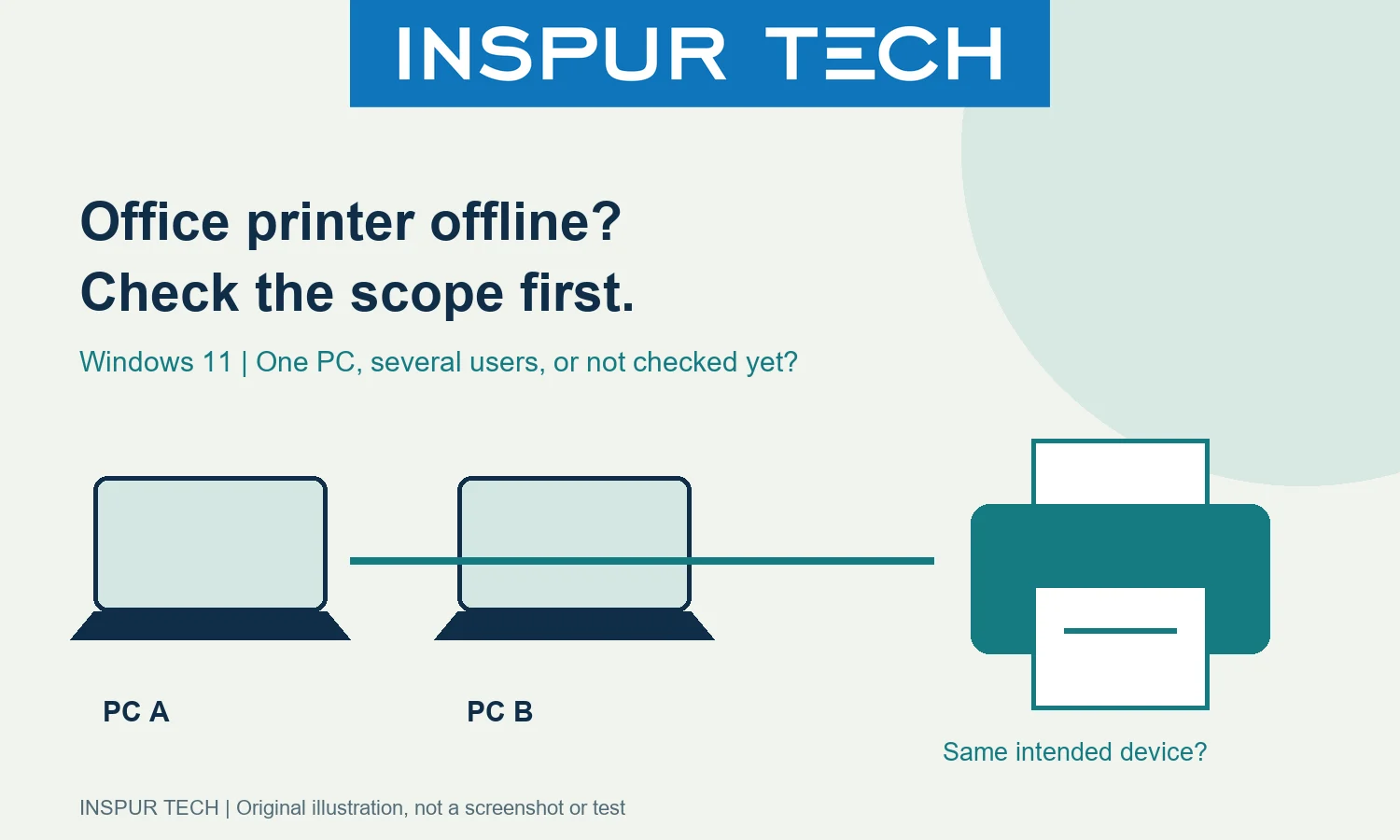
Start by finding the scope: does one Windows 11 PC fail to print, or do several authorised users have the same problem? That comparison helps organise the next check, but it does not prove whether the fault is in a PC, network or printer. Use the printer’s exact model instructions alongside Windows guidance, especially for managed office networks and shared print queues.
This guide is for an office team preparing a useful first investigation and support request. It does not diagnose your equipment remotely, and the diagrams are original illustrations rather than screenshots or a customer case.
First record what “offline” means in your office
Record the exact printer name shown in Windows, where the message appears and when a successful print was last observed. An office might have similarly named queues for different floors or an old device. Those names need checking before anyone changes a driver or removes a queue.
Use a small, non-confidential test document rather than a payroll report or customer invoice. Ask an authorised colleague whether they can print to the same intended device. Record the time of that comparison. A test on a different printer or before the problem started does not establish that the current route works.
The resulting note can be brief: “At 10:15, PC A shows Queue X offline; PC B has not yet been tested.” Leaving the second result unknown is more useful than assuming the whole office is affected. This is an illustrative reporting format, not an account of an INSPUR TECH service visit.
Use a two-route comparison, not a replacement guess
If only one PC appears affected: keep the working colleague’s configuration intact. Record which queue and connection each person uses, and look for differences that an administrator can review. Do not copy settings indiscriminately; the two users may have different approved access or printing requirements.
If several users appear affected: check whether they are using the same device and route. Notify the person responsible for that printer before restarting shared equipment. Several failed jobs may point towards a shared dependency, but simultaneous failures alone are not proof that the printer hardware has failed.
If nobody else has been checked: say so. A missing comparison is a next action, not evidence for either route. This prevents the support request from turning a hunch into a parts order.
Apply the relevant Windows 11 checks
Microsoft recommends starting with the printer troubleshooter in the Windows 11 Get Help app. Its offline-printer guide also covers checking connectivity and the print queue. You can inspect the selected printer under Settings > Bluetooth & devices > Printers & scanners, then open its queue. For a Wi-Fi printer, Microsoft includes checking that it and the device are connected to the same Wi-Fi network. Follow the printer manufacturer’s instructions for the model. Microsoft: troubleshooting offline printer problems.
In an office, ask IT to confirm the approved connection rather than moving a PC onto another network just to make a test work. Our recommendation is to record changes and make one authorised adjustment at a time. If the office uses a print server, a shared PC or a managed queue, let the responsible administrator decide which checks belong on the client and which belong on that shared service.
Do not cancel other people’s jobs without agreement. Before any proposed restart or reinstallation, record the current queue and ask who may be affected. A documented change makes a later support handover clearer, even when the change does not fix the issue.
Prepare a support request that can be acted on
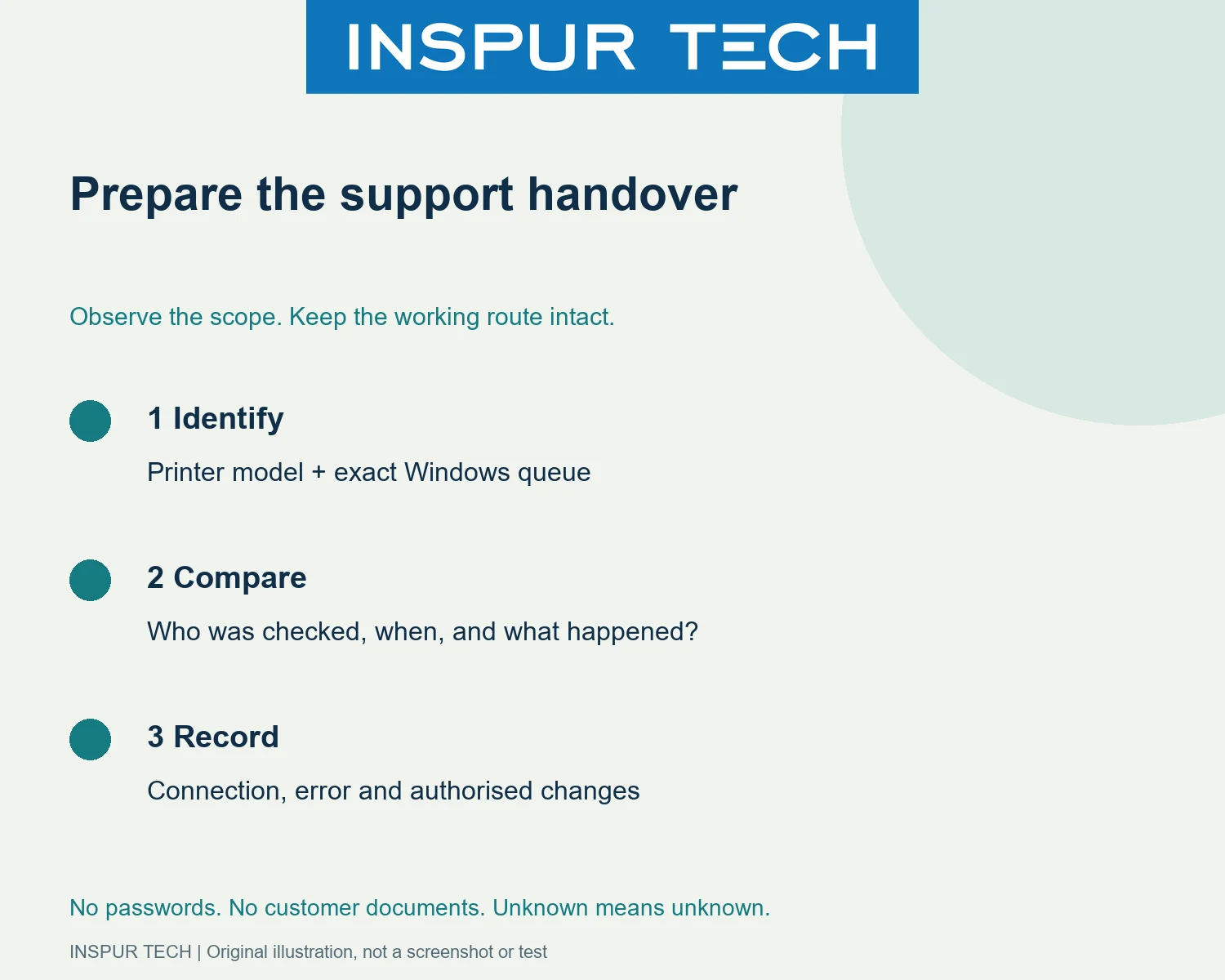
Collect these details in a private support channel:
- Printer brand and exact model, plus the intended Windows queue name.
- Windows 11 version and whether the PC is managed by your organisation.
- Connection description: USB, network printer, shared PC or print server, if known.
- Which users were checked, what they observed and the time of each check.
- The error wording, recent changes and any authorised troubleshooting already attempted.
State unknowns explicitly. Remove document contents, customer names and account details from screenshots. Do not include passwords. If the device also scans or photocopies, describe those functions separately instead of treating one successful copy as proof that Windows network printing works.
When to involve INSPUR TECH
INSPUR TECH’s owner-confirmed services include IT support, on-site support, networking, printer sharing and photocopier print/scan support. Provide the model and scope note so the team can discuss the appropriate next step. The required work, appointment, fees and any parts depend on the actual environment and must be confirmed for the job; this article does not promise a free inspection or a particular repair result.
See our network and wiring service information or use the contact page to describe the issue. For more task-focused guides, visit 电脑技巧.
Technical source checked: 17 October 2026. The comparison method and handover checklist are INSPUR TECH editorial guidance; no equipment test, client outcome, search ranking or Google indexing result is claimed.