
How to Repeat Table Headers in Word Across Pages
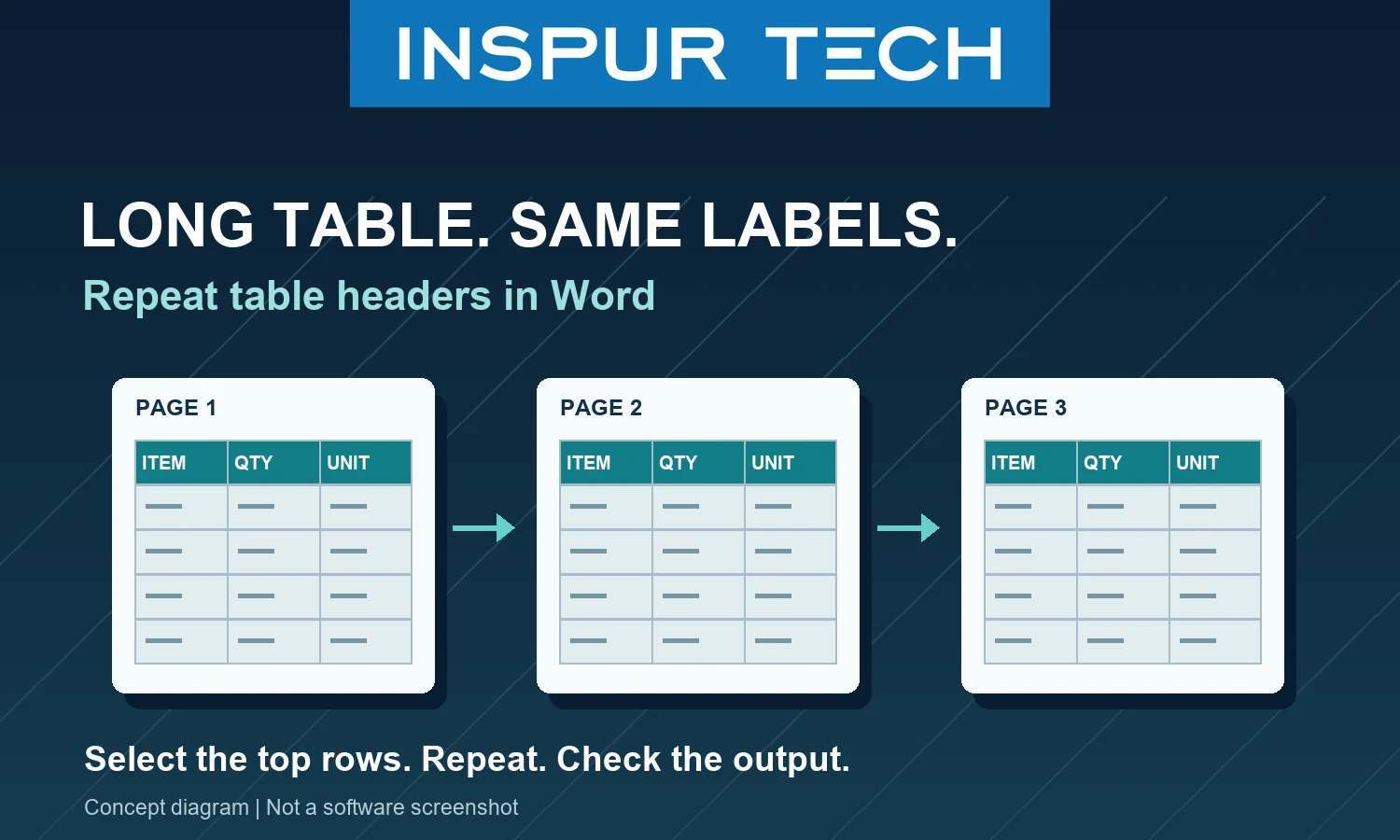
Use Word’s Repeat Header Rows setting for a long table. Include its first row in the selection; use Print Layout to check the result. This guide covers the desktop Word versions listed in Microsoft’s reference: Microsoft 365, 2024, 2021, 2019 and 2016. Do not assume the same controls are available in the web or mobile app. Imagine reviewing a three-page stock list with columns for item, quantity and unit. On page two, a number without its label can be hard to interpret. The goal is to keep those labels with the table while leaving room for the actual records. This is an illustrative office scenario, not a customer case or software test.
Set the repeating rows
Select the table’s top label row, or the consecutive top rows needed for a multi-row heading, including the first row. Choose Table Layout → Repeat Header Rows. An alternative is Table Properties → Row, then enable the option to repeat the header at the top of each page. Microsoft documents both methods in its table-header instructions.
If the next page still has no labels
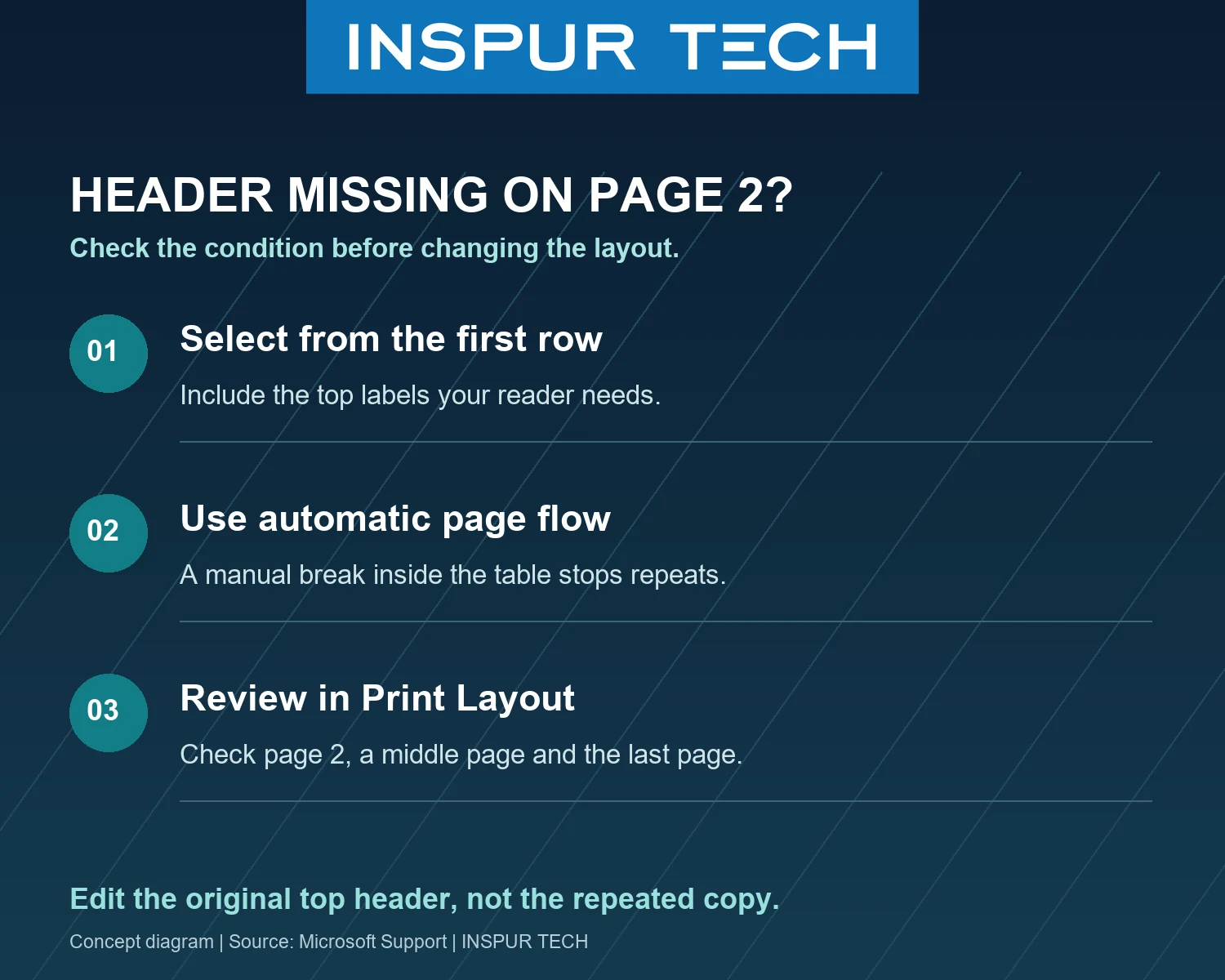
Check in Print Layout or print output: that is where repeated headers are visible. Also check whether the table contains a manual page break. The feature works with automatic page breaks, but Microsoft notes that a manual page break inside a table prevents the header repeating. Edit the original top header to update the repeats; the repeated copies are locked.
Choose what belongs in the header
For the example stock list, “Item / Quantity / Unit” is enough to explain each row. A large company introduction or instructions paragraph above those labels may make every page harder to scan. Our editorial recommendation is to keep the repeating label area focused on what the reader needs to interpret a record. If the document has a two-level heading, ask whether both levels are essential. For example, a top category label may explain two lower columns with similar names. Keep the necessary context, then check the space left for records. There is no universal header height that suits every report. Before changing a business document, work on a copy. Note the intended header rows and the page where the problem occurs. This gives you a clear before-and-after comparison without risking an uncontrolled edit to the working master.
A review checklist before sending the report
Use this practical handover check after applying the setting:
- Start at page two. Can a colleague identify the meaning of each column without returning to page one?
- Check the last page as well as a middle page. Inspect long item descriptions and crowded labels, not only short sample rows.
- Read one illustrative record from left to right. Are the labels specific enough to distinguish quantities, units and any amounts?
- Ask whether the intended recipient will print the report or read a file. Inspect that intended output, rather than relying on one editing view.
- Keep the editable master and the approved outgoing copy clearly named so the team knows which one to revise.
These are document-review recommendations. They do not certify that a report’s data is correct or that a particular business template has been tested.
Repeating labels or redesigning the table?
Repeating a header addresses missing context on later pages. It does not resolve every readability problem. If a colleague still needs a separate explanation for each column, review the wording and grouping of the labels. If the report mixes several unrelated tasks, consider whether separate sections would be clearer before adding more formatting. Use the smallest change that solves the reader’s problem. Record what was changed so the next person maintaining the template can understand the decision.
Need to discuss an office document problem?
Describe the document type, Word version and the point where the layout becomes difficult to use. Share a sanitised example only, with customer and financial details removed. You can find INSPUR TECH’s contact route on its official website or browse more 电脑技巧. Technical reference checked on 15 October 2026. Illustrations are original explanatory diagrams, not Word screenshots. Instructions were checked against Microsoft documentation; no application test or customer outcome is claimed.