
Word Page Breaks: Start a New Chapter Without Blank Lines
To start the next chapter on a new page in Word, place the cursor before its heading and choose Insert > Page Break. Repeatedly pressing Enter adds empty paragraphs, rather than a clear page boundary. When earlier text changes, those empty paragraphs may no longer position the heading where you intended.
This guide focuses on Word for Windows desktop. Ribbon labels and available controls can differ on Mac and the web. The workflow is useful for office proposals, training notes and reports that remain editable.

Original INSPUR TECH diagrams; these are illustrations, not software screenshots or results from a customer document.
Why blank lines are a fragile way to position a chapter
Imagine a two-part quotation explanation. The second heading appears at the top of page two because someone inserted several empty paragraphs. A colleague then adds a longer introduction on page one. Those paragraphs still occupy space, but their position shifts with the text. The heading can move farther down or onto another page.
A manual page break expresses a different instruction: end this page and start the following content on a new page. It does not guarantee that the heading will always be on page two. Adding enough material before it can change the chapter’s page number. Use it to control the boundary, not to promise an unchanging page count.
Insert a manual page break in an existing report
- Save a working copy. Keep the original while you clean up an unfamiliar document.
- Inspect the gap before the next heading. On the Home tab, turn on Show/Hide (the paragraph-mark symbol, ¶). This helps you see empty paragraphs and manual page breaks.
- Remove only the unnecessary blank paragraphs. Avoid selecting meaningful text or a section break merely because it appears in the gap.
- Place the cursor before the next chapter heading. Choose Insert > Page Break. Microsoft documents this insertion path in its page-break guide.
- Check the result. Look at the heading and the preceding page, then inspect Print Preview. Save the revised copy once the structure is correct.
Page break or section break: use the right boundary
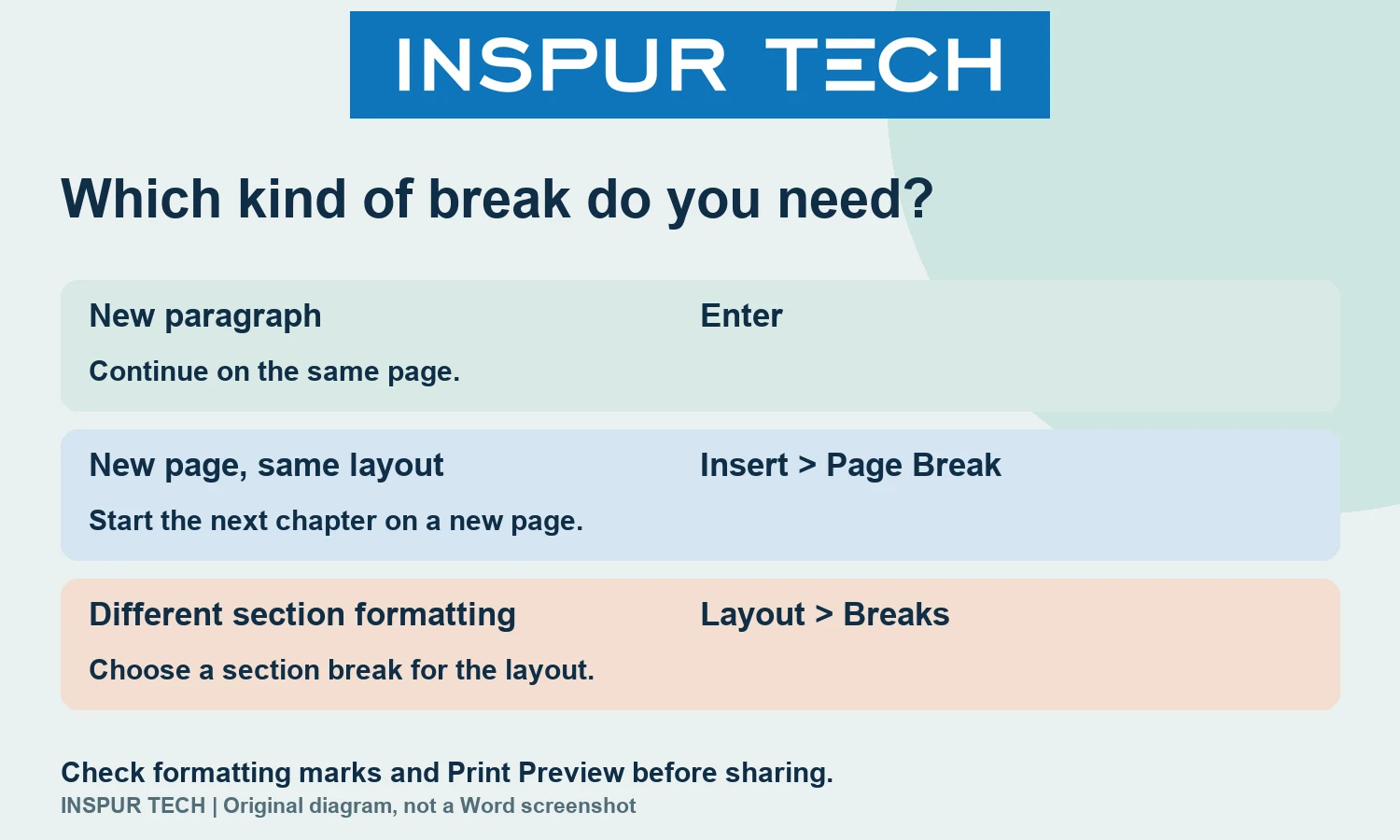
- Another paragraph on the same page: use Enter.
- A new page with the same overall layout: use a page break.
- A part with different section formatting: consider a section break. Microsoft lists columns, headers, footers and page borders as examples of section formatting.
For Windows desktop, Microsoft’s section-break instructions use Layout > Breaks. A Next Page section break begins the section on the following page; Continuous begins it on the same page. Odd Page and Even Page begin on the next matching page number. Do not add a section break simply because a heading needs a new page: choose it when the formatting boundary calls for one.
An unexpected extra page? Inspect before deleting
Turn on Home > Show/Hide and examine the area around the page boundary. Microsoft’s page-break training note explains that this makes manual page breaks visible so they can be selected and deleted.
If a manual break is accidental, remove that break in your working copy and check the pages again. If you see blank paragraphs, remove only the extras. If the marker is a section break, first establish why it is there: it may be separating intentional formatting. This short workflow is not a diagnosis of every blank-page cause, such as a table or paragraph pagination setting.
A practical check before you share the file
- Does each intended chapter begin on a new page?
- Are there unnecessary empty paragraphs above those headings?
- Has any section boundary been changed without reviewing its formatting purpose?
- Does Print Preview show the pages you intend to send?
- Have you saved the corrected file under the right version name?
In the illustrative quotation example, the objective is a chapter that begins cleanly after edits—not a claim that every recipient’s fonts, printer settings or Word version will render identically. Recheck the final deliverable in its intended format.
Quick questions
Does a page break lock the page number?
No. It starts the following content on a new page, but earlier content can still change the number of pages before it.
Is a page break the same as a section break?
No. A page break changes where the next content begins. A section break provides a boundary for section formatting; its chosen type also determines whether it starts on the same page or a later one.
Should I remove every visible paragraph mark?
No. Paragraph marks also represent legitimate paragraph boundaries. Show/Hide is an inspection tool, not an instruction to delete all marks.
For more practical office workflows, visit INSPUR TECH Computer Tips. You can also view our 电脑维修服务 page when a wider computer issue needs support; this tutorial does not diagnose a hardware fault.
Published 13 October 2026. Microsoft instructions checked on that date. Editorial explanation and diagrams by INSPUR TECH SDN. BHD.; no customer case, product test or ranking result is implied.